My Blinkie

Forum Hangout

Showing posts with label PTU. Show all posts
Showing posts with label PTU. Show all posts
Tuesday, April 22, 2025

.png)
**note if you ever did Allisons tutorial these are the same settings!**
**her tutorial is HERE**


I used mask - Suz cmbbmask12 (it's my favorite mask lol)
also remember to sharpen and add this DS to ALL of your elements!

Mask used was Vix_BigMask019
Make sure to sharpen and add a DS to all of your elements!!
I forgot what DS I used lmfao! So, pick whatever works for you!

Tuesday, August 11, 2020

This tutorial was written by Ashley Zimmerman on 8/11/20
Any resemblance to any other tutorial is coincidental.
Supplies I Used:
PSP – I used 2020 but any version will do
Tube of Choice : I used an adorable tube by
Maryline Cazenave 113-2 which you can get HERE
Maryline Cazenave 113-2 which you can get HERE
Scrapkit Used : I Used my bundle kit which is available HERE
The bundle does include the kit and 3 tubes 113-1 ,113-2, 113-3
Masks Used : AKK_Mask03 & AKK_Mask61
The bundle does include the kit and 3 tubes 113-1 ,113-2, 113-3
Masks Used : AKK_Mask03 & AKK_Mask61
Font of Choice - Font I used for the names was Will and Grace
Plugins Used
Eye Candy 4- Gradient Glow
DSB Flux Bright Noise
DSB Flux Bright Noise
**Abbreviations I use**
C&P - Copy and Paste
DS- Drop Shadow
RS- Resize
to resize in PSP go to IMAGE - RESIZE
SN- Sharpen
PAS - Place as shown
DS- Drop Shadow
RS- Resize
to resize in PSP go to IMAGE - RESIZE
SN- Sharpen
PAS - Place as shown
Drop Shadow used is V: 5, H:0, Opacity: 50, Blur: 15 (Color Black)
Apply Drop Shadow to all your elements as we go along unless I state NO DS!
Or state a change in the settings of the DS
*Also Sharpen all your elements as we go along!
**If you ever get confused as where to place an element just look at my tag for reference!**
Apply Drop Shadow to all your elements as we go along unless I state NO DS!
Or state a change in the settings of the DS
*Also Sharpen all your elements as we go along!
**If you ever get confused as where to place an element just look at my tag for reference!**
Let's get started !!
Open a new canvas 800 x 800
Open tube 113-2 (or tube of choice) C&P as new layer
RS 70%, align center in canvas - SN & add DS
but change your settings for your DS to
V:6, H: 0, Opacity: 80, Blur : 15
Now onto the elements
NOTE now we will be going back to our original
DS settings - 5, 0, 50 , 15
Open a new canvas 800 x 800
Open tube 113-2 (or tube of choice) C&P as new layer
RS 70%, align center in canvas - SN & add DS
but change your settings for your DS to
V:6, H: 0, Opacity: 80, Blur : 15
Now onto the elements
NOTE now we will be going back to our original
DS settings - 5, 0, 50 , 15
Open element 2 - RS by 20 % , SN & ADD DS place above tube layer to the
left of the mug
Open element 3 - RS by 20% place beneath element 2 , PAS
SN & ADD DS
Open element 1 - RS by 25% , PAS
SN & ADD DS
Open element 41 - RS by 55% place beneath the tube to the left
SN & ADD DS
Open element 53 -
Image - Flip Horizontal / RS by 35% place above element 41
SN & ADD DS
Open element 35 - RS by 45% PAS
SN & ADD DS
Open element 12 - RS by 20 % place above element 1
SN & ADD DS
Open element 11 - RS by 40% place above the tube layer to the left
SN & ADD DS
Open element 19 - RS by 15% place above element 11
SN & ADD DS
Open element 6 - RS 20% place above tube layer to the right
SN & ADD DS
Open element 5 - RS 20% place beneath element 6
SN & ADD DS
Duplicate element 1 , rename element 1-2
Place above tube layer to the left
Duplicate element 1-2 / Image - Mirror Horizontal
Open element 16 - RS by 35% place beneath tube layer to the right
SN & ADD DS
Open element 14 - RS by 35% place above element 35 to the right
SN & ADD DS
Open element 37 , Image - Free Rotate - Left : Free : 25 degrees
place beneath element 35 to the left
RS by 45% SN & ADD DS
Open element 47, Image - Free Rotate - Left : Free: 25 Degrees
RS by 40%
place above element 37 to the left - SN & ADD DS
Open element 65 - RS by 45% place above element 47 to the left
SN & ADD DS
Open element 27 , Image - Flip Horizontal , RS by 25%
place above element 65 to the left
Open element 21 - RS by 15% place above tube layer as shown
SN & ADD DS
Open element 13 - RS by 10% place above element 6
duplicate element 13 , move under original and move it slightly to the right as shown
Merge both elements (13 and its duplicate) together
SN & ADD DS
Open element 68a - RS by 20% place above element 35 to the right
SN & ADD DS
Duplicate element 68a , Image - Mirror - Horizontal
move above element 37 place as shown - rename leaves
Open element 62 - RS 40% place above leaves to the left
SN & ADD DS
Open element 62 again - RS 60% place beneath element 37 to the right
SN & ADD DS
Open Spray 6 - RS by 40% place above element37
Open Spray 2 - RS by 30 % place above element 68a
SN & ADD DS
Open Spray 5 place above Spray 2 as shown
(erase the part of the spray that is peeking out underneath the tag)
Open Paper 12 RS 800 x 800 PIXELS
C&P on canvas
Make this your bottom layer
Layers - Load Mask From Disk- AKK_Mask03
Merge this group together
Open Paper 9 RS 800 x 800 PIXELS
C&P on canvas
Move this under your first mask layer
Layers - Load Mask From Disk - AKK_Mask61
Merge this group together and RS by 95%
Crop away any excess canvas
add copyright and names
and we are done !
For my name I used the font Will and Grace
Size 72 , Color #47351d
Type out your name
Convert to raster layer
Effects - Plugins - DSB Flux - Bright Noise
Intensity 45 - Direction : Mix - Select OK
Sharpen!
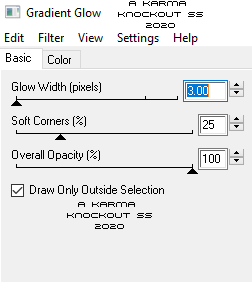
Now Effects - Plugins - Eye Candy 4000 Gradient Glow
with these settings ::
left of the mug
Open element 3 - RS by 20% place beneath element 2 , PAS
SN & ADD DS
Open element 1 - RS by 25% , PAS
SN & ADD DS
Open element 41 - RS by 55% place beneath the tube to the left
SN & ADD DS
Open element 53 -
Image - Flip Horizontal / RS by 35% place above element 41
SN & ADD DS
Open element 35 - RS by 45% PAS
SN & ADD DS
Open element 12 - RS by 20 % place above element 1
SN & ADD DS
Open element 11 - RS by 40% place above the tube layer to the left
SN & ADD DS
Open element 19 - RS by 15% place above element 11
SN & ADD DS
Open element 6 - RS 20% place above tube layer to the right
SN & ADD DS
Open element 5 - RS 20% place beneath element 6
SN & ADD DS
Duplicate element 1 , rename element 1-2
Place above tube layer to the left
Duplicate element 1-2 / Image - Mirror Horizontal
Open element 16 - RS by 35% place beneath tube layer to the right
SN & ADD DS
Open element 14 - RS by 35% place above element 35 to the right
SN & ADD DS
Open element 37 , Image - Free Rotate - Left : Free : 25 degrees
place beneath element 35 to the left
RS by 45% SN & ADD DS
Open element 47, Image - Free Rotate - Left : Free: 25 Degrees
RS by 40%
place above element 37 to the left - SN & ADD DS
Open element 65 - RS by 45% place above element 47 to the left
SN & ADD DS
Open element 27 , Image - Flip Horizontal , RS by 25%
place above element 65 to the left
Open element 21 - RS by 15% place above tube layer as shown
SN & ADD DS
Open element 13 - RS by 10% place above element 6
duplicate element 13 , move under original and move it slightly to the right as shown
Merge both elements (13 and its duplicate) together
SN & ADD DS
Open element 68a - RS by 20% place above element 35 to the right
SN & ADD DS
Duplicate element 68a , Image - Mirror - Horizontal
move above element 37 place as shown - rename leaves
Open element 62 - RS 40% place above leaves to the left
SN & ADD DS
Open element 62 again - RS 60% place beneath element 37 to the right
SN & ADD DS
Open Spray 6 - RS by 40% place above element37
Open Spray 2 - RS by 30 % place above element 68a
SN & ADD DS
Open Spray 5 place above Spray 2 as shown
(erase the part of the spray that is peeking out underneath the tag)
Open Paper 12 RS 800 x 800 PIXELS
C&P on canvas
Make this your bottom layer
Layers - Load Mask From Disk- AKK_Mask03
Merge this group together
Open Paper 9 RS 800 x 800 PIXELS
C&P on canvas
Move this under your first mask layer
Layers - Load Mask From Disk - AKK_Mask61
Merge this group together and RS by 95%
Crop away any excess canvas
add copyright and names
and we are done !
For my name I used the font Will and Grace
Size 72 , Color #47351d
Type out your name
Convert to raster layer
Effects - Plugins - DSB Flux - Bright Noise
Intensity 45 - Direction : Mix - Select OK
Sharpen!
Now Effects - Plugins - Eye Candy 4000 Gradient Glow
with these settings ::

Select OK
Now go back again to your eye candy 4000 gradient glow and now
use these settings :

ADD DS BUT change your OPACITY to 90
And that's all folks!
I hope you enjoyed my tutorial !!
Thursday, May 21, 2020

This tutorial was written by Ashley Zimmerman on 5/21/2020
Any resemblance to any other tutorial is coincidental.
Any resemblance to any other tutorial is coincidental.
Supplies I used:
PSP – I used 2020 but any version will do
Jasc Animation Shop
Animation 1268 from Package 422
Animation 1409 from Package 469
Both from Rebel Dezigns
The animations are PTU
We will be going back and forth between Animation Shop (AS)
and PSP
If you did the first half of the tutorial and came to this then
your tag should still be open in PSP !
Let's get started !!
Open Animation Shop
Open animation 1268 & 1409
Minimize animation 1409 as we will use this animation second
We are going to resize animation 1268


When you have resized now
Edit > Select All or CTRL A
Layers > View > None
Now select your Note Tube and
every layer beneath it
Click the visibility toggle
(the little box on the left)
Now all these layers will be on your canvas

Now activate only your White background layer
It should be the only one highlighted blue
Edit > Copy Special > Copy Merged
Edit > Paste as new animation
Press CTRL L until you have 25 frames like our animation
If you look in the bottom right hand corner it will tell you how many frames you have

Edit > Select All
Edit > Propagate Paste
Now go back to animation 1268
Edit > Copy
Now on your tag
Edit > Paste Into Selected Frame
Place where you would like
I placed mine to the left on top of my Note Tube
*Note* You can click View > Animation to see if you like
where it is placed
If not just click the undo button
and try again !
Now we want to hide all the layers that are currently showing
Layers > View > None
Now select every layer above your Note Tube
CTRL and select each layer
then click the visibility toggle box
and they will all appear on your canvas

go to the very last one it should be element 5 and
make sure this is your only active layer
So it should be the only one highlighted blue
Edit > Copy Special > Copy Merged
Edit > Paste into selected frame
Place where you want it to go
Now maximize animation 1409
Edit > Select All
Edit > Copy
Go to your tag and
Edit > Paste into selected frame
and place where you would like
Layers > View > None
And now select element 19 & above
This will include your copyright and also
if you are only doing one name on your tag and
not for multiples then
have your name on the tag also
I am making for multiple so I do not have a name
on my tag yet

Activate element 19 it should be the only one
highlighted blue
Edit > Copy Special > Copy Merged
Edit > Paste into selected frame
and place where it goes
Now I am done animating my tag
If you are only doing one name on your tag then it should already be
on there with the last copy merged we did
and you can now simply save as a gif
If you are wanting the tag to be for multiple people then
we are going to save as a Animation Shop Animation (*.mng)

Now close your saved (*.mng) tag
Now the reason we are saving as a (*.mng) is because
I want to make my tag for multiple people
I am making my tag for 3 People which equals 3 names
So I am going to open my saved (*.mng) tag 3 times
On each one press CTRL A it will select all 25 frames
which we need

Layers > View > None
select your text tool
and write out the first name
Covert to Raster Layer
and add any effects you would like
I used Eye Candy 4000 Gradient Glow and added a DS
of V: 3, H:2, Opacity: 60, Blur: 3 (Color Black)
Now select your text tool again and write out the next name
Convert to Raster Layer
add effects and repeat for as many names as you have
When you have all your names finished
Layers > View > None
Now activate the first name you are going to use
Edit > Copy Special > Copy Merged
Edit > Paste into selected frame
place where you would like
When it is placed where you would like
File > Save as (*.gif)
It is the first one from the dropdown menu when the
dialog box opens
I use all the custom settings when I save
Click Next , Click Next, Click Next then Click Finish
Now close
*Note* when you close that tag you will still have your tags underneath it
that we opened for each name we made !
Now repeat those steps for each name !
When you go back to PSP
Just hide the name you just used
and make the next name active and visible then
Edit > Copy Special > Copy Merged
Also when you save each tag in AS
MAKE SURE you save each one as a (*.gif)
*Note* another cool thing is when you are done making all your tags
in AS you can go back to PSP
Layers > View > All
Hide the names
Hide the white background layer
Change your credits so it doesnt
have the animation credit on it
Then save as a PNG
**Keep your tag opened**
Now you can
activate each name one at a time
(because we already have them all on the canvas!)
place the name where you would like
and save it as a PNG for said person
Then you would just hide that name
and go onto the next and repeat !
I hope you enjoyed my tutorial !
Subscribe to:
Posts
(Atom)